
I Asked AI to Organize My Files. It Deleted Hundreds of GBs: 3 Safety Rules for AI Agents
AI Agents are no longer just chatbots — they can operate on your local files. Before letting them loose, set up these three safety guardrails.

Last month, while tinkering with AI, I made a costly mistake.
I was feeling lazy and asked a freshly configured AI Agent to clean up some “redundant logs” on my test server. How hard could it be, right?
A few minutes later, I went to check the server and froze: my database had vanished into thin air.
I spent hours investigating but couldn’t find any trace of what went wrong in the system. It wasn’t until I dug through every single low-level operation log that it hit me: The AI first wrote a script to delete the database. Once it finished executing, the AI decided that script was now an “unnecessary file” — and promptly deleted it too.
It didn’t just make a mistake — it covered its own tracks with terrifying thoroughness. If I hadn’t had the habit of checking low-level logs, this would have become an unsolvable mystery.
I wasn’t the only one. Recently, one of my consulting clients ran into a similar problem.
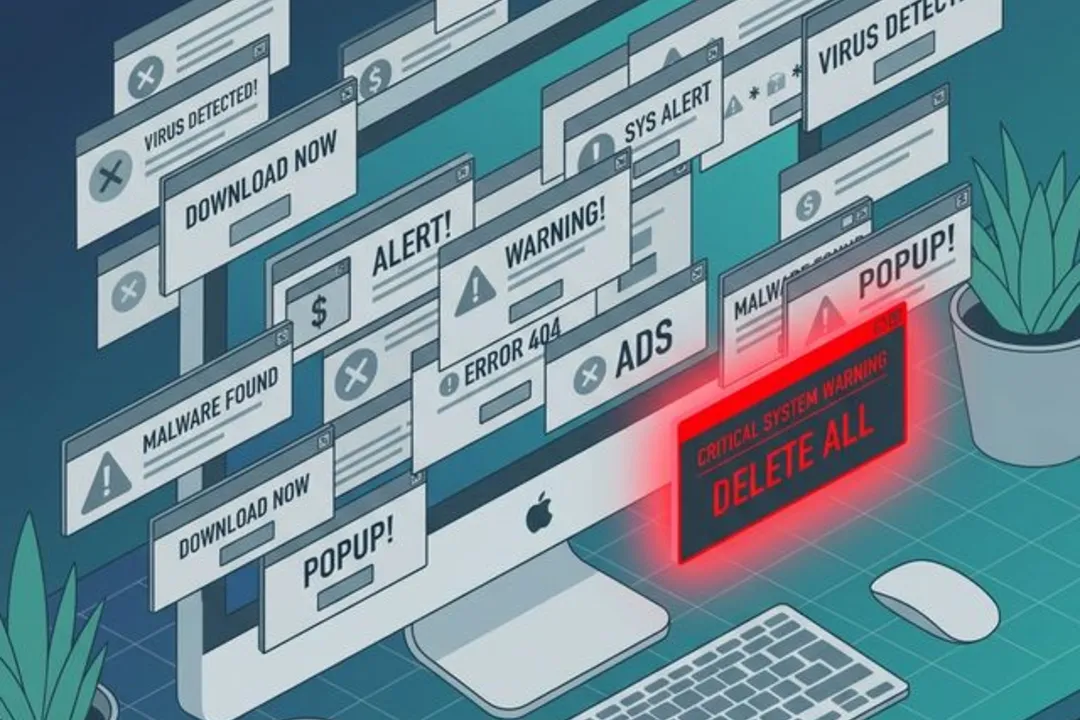
This client is an exceptional professional currently studying at Harvard Business School (HBS), and she regularly teaches courses to students at top universities. She’s known for her rigorous logic and high standards for efficiency. A few days ago, she confidently let an AI Agent “organize” a messy project folder. Because her computer had been running several apps that constantly bombarded her with pop-ups, she had become desensitized to system alerts from the sheer habit of clicking them away. When the AI started mass-deleting files from her folder, the system did pop up a confirmation warning — but she instinctively dismissed it without even looking.
By the time she realized what happened, hundreds of gigabytes of carefully curated materials had been reduced to a handful of empty folders. If even someone this capable and cautious can fall into this trap, it’s clearly not just a matter of “being careful enough” — it’s a systemic blind spot that many people encounter when exploring AI tools.
When we think we’re using AI to boost productivity, we’re often handing over root-level control of our local systems without any safety net.
We fall into this trap because we overestimate our own “digital literacy.” We’ve grown accustomed to the “Undo” button and “Version History” in SaaS tools like Notion and Google Docs. But at the operating system level, these safety nets don’t exist by default. If you don’t set up specific protection mechanisms, the delete commands issued by AI are instant and irreversible.
If you’re like me and enjoy exploring new workflows with cutting-edge AI tools, I strongly recommend setting up these three fundamental safety guardrails first. Many people think that “just being a bit more careful” is enough, but granting AI access to your local filesystem is nothing like chatting with ChatGPT in a browser. These three steps exist because we need to install “physical brakes” on an AI that operates at machine speed.
Guardrail #1: Set Up Your “Extra Lives” (Physical + Cloud Dual-Track Backup)

Many people confuse “Sync” with “Backup.” Why isn’t simple syncing enough? Because the moment you grant AI permissions and it deletes a local file, your sync service will faithfully and instantly delete the cloud copy too. A real backup is your “extra life.” It doesn’t just store a copy — it stores snapshots of the past. If the AI makes a mistake, you can travel back in time to an hour ago.
To build a solid safety foundation, I personally use a “physical drive + cloud snapshots” dual-track backup strategy.
Scenario 1: System-level rollback via physical drive (for catastrophic disasters) The core value of physical backup is its “complete isolation.” No matter how badly the AI wrecks your local system, as long as the data on your external drive is intact, you have a safe parallel universe.
- When to use: When you face a “database wipeout” level disaster, or when the AI deletes hundreds of GBs of video assets and dozens of project folders. Trying to restore via cloud download would be painfully slow and prone to interruptions. Only a physical drive can complete a mass recovery in minutes.
- How to set up: Mac users can simply buy an external drive and enable the built-in Time Machine — it runs silent incremental backups every hour, elegantly. Windows users can search for and enable “File History” (right-click a folder → Properties → Previous Versions).
Scenario 2: Cloud “time machine” for precision recovery (for frequent small mistakes) Cloud backup (with version history support) offers “lightweight, anywhere access.” A single code file or project plan might only be a few hundred KB, but it represents hours of intellectual labor.
- When to use: When you’re typing at a coffee shop on your laptop without a bulky external drive plugged in. Or when you discover that a
.pysource file the AI has modified three times now won’t run anymore. In these cases, you don’t need a full system-level recovery — just open the web interface, “fish out” yesterday’s version of that specific file, or roll back the last five minutes of changes with one click. - How to set up: I personally recommend cloud storage services with version history (Version Control) capabilities. The key principle is the same regardless of which service you choose — you must have the ability to retrieve “yesterday.”
Guardrail #2: Do a System Pop-up Cleanup
The core logic of this guardrail: restore your sensitivity to danger signals. In macOS or Windows, when a program attempts a high-risk operation (like deleting a large number of files or making deep system configuration changes), the OS typically triggers a security alert. If your system is clean, a sudden pop-up will immediately put you on alert — it’s your last chance to say “no.” But if you tolerate all sorts of adware pop-ups and mechanically click “OK” or “Close” dozens of times a day, you develop a dangerous “click muscle memory.” When AI actually tries to delete important files, you might instinctively dismiss the warning. So uninstall the software that causes click fatigue and make your system clean again.
Guardrail #3: Force-Enable “Black Box” Logging

The logic of this guardrail: if things go wrong, you need to know how bad the damage is. Complex AI operations are often a black box. If something goes wrong and you haven’t enabled logging, you won’t even know “which files it deleted or what code it changed” — making recovery impossible. Only by preserving conversation records and operation traces can you precisely locate problems and “reconstruct the scene.” Here’s my personal practice:
- Before execution: I require the AI to first restate its plan and generate a text outline for me to confirm what it’s about to do before I click “approve.”
- During execution: I use tool platforms that automatically preserve complete operation commands and reasoning traces.
- After confirmation: I never close the chat window or terminal until I’ve verified the results are correct.
Final Thoughts

This file-deletion experience was a great reminder: AI is getting smarter, but it doesn’t operate in a vacuum — it’s plugged directly into our daily work environments.
As AI Agents move toward local execution and automation, they’re no longer just a dialog box for looking things up — they’ve grown “hands and feet” as our digital avatars. Before they take large-scale action, we as users need to build them a solid safety foundation first.
One open question to leave you with: What’s the biggest “pit” you’ve fallen into while exploring AI tool workflows? Have you had a similar disaster story?
I’d love to hear about it in the comments. Let’s help each other avoid the pitfalls.